
How to Import and Export Customer Data in Valtoroq
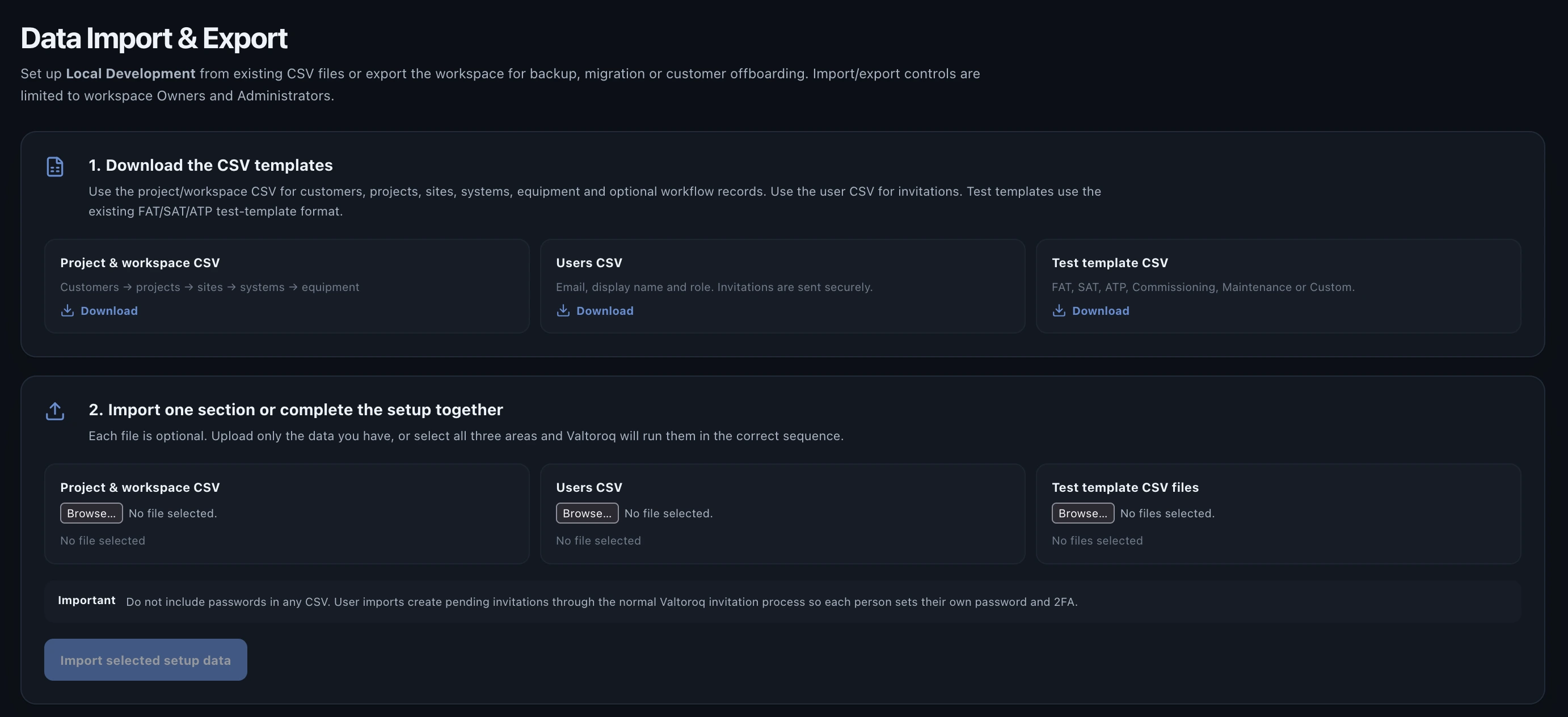
Moving from spreadsheets into a new project-delivery platform should not mean retyping years of operational data. Valtoroq provides a Data Import & Export area where authorized administrators can bring existing workspace information into the platform from CSV and export the workspace later for backup, migration or offboarding.
Why import existing project data instead of entering it again
Many technical delivery teams already have useful data before they start using Valtoroq. Customer lists may be in one spreadsheet, equipment registers in another, project structures in a workbook and FAT or SAT procedures in separate files. Re-entering that information manually takes time and creates opportunities for duplicate records, inconsistent names and missing relationships.
The Data Import & Export area is designed to reduce that setup work. An administrator can download the supported CSV templates, move existing information into those formats and upload only the parts that are ready. A new workspace can therefore be built progressively instead of requiring one large migration event.
Step 1: download the CSV templates you need
Open Settings and then Data Import & Export. Start by downloading the template for the information you want to move into Valtoroq. The setup separates the data into practical groups so an administrator does not have to force unrelated records into one oversized spreadsheet.
- Project and workspace CSV
Use this for the delivery hierarchy, including customers, projects, sites, systems and equipment represented by the workspace import format.
- Users CSV
Use this when you already know the people who need access and the workspace role each person should receive.
- Test-template CSV
Use this for reusable FAT, SAT, ATP, commissioning, maintenance or custom test procedures.

Step 2: preserve the delivery hierarchy
The most important part of a project-data migration is not the number of rows. It is preserving the relationship between the records. Valtoroq is structured around Customer → Project → Site → System → Equipment, so imported records should preserve that context.
- Prepare customer information
Make sure each customer can be identified consistently by the fields expected by the workspace template.
- Connect projects to customers
Each project should point back to the correct customer rather than becoming a detached project record.
- Connect sites to projects
Use the relationship fields in the template so each delivery location is created within the intended project.
- Connect systems to sites
Systems should remain within the site where they are installed, delivered or managed.
- Connect equipment to systems
Preserve serial numbers, asset information and system relationships so the equipment register starts with useful operational context.
Step 3: import users without importing passwords
User onboarding is deliberately separated from password handling. The users CSV can contain the information needed to create invitations, such as email, display name and role, but it should never contain passwords.
When the user CSV is imported, Valtoroq creates pending invitations through the normal invitation workflow. Each person receives the appropriate invitation and completes their own account setup.
- Owners and Administrators control the import.
- Existing members and pending invitations are not duplicated.
- Workspace seat limits are still enforced.
- Each user completes normal password setup.
- Two-factor authentication remains part of the normal account-security flow.
Step 4: import the setup together or one section at a time
A new implementation does not always arrive as one perfect dataset. You can import the project/workspace hierarchy first, invite users later and add reusable test procedures when engineering has finished preparing them. For a well-prepared deployment, the available setup files can also be selected together from the same page.
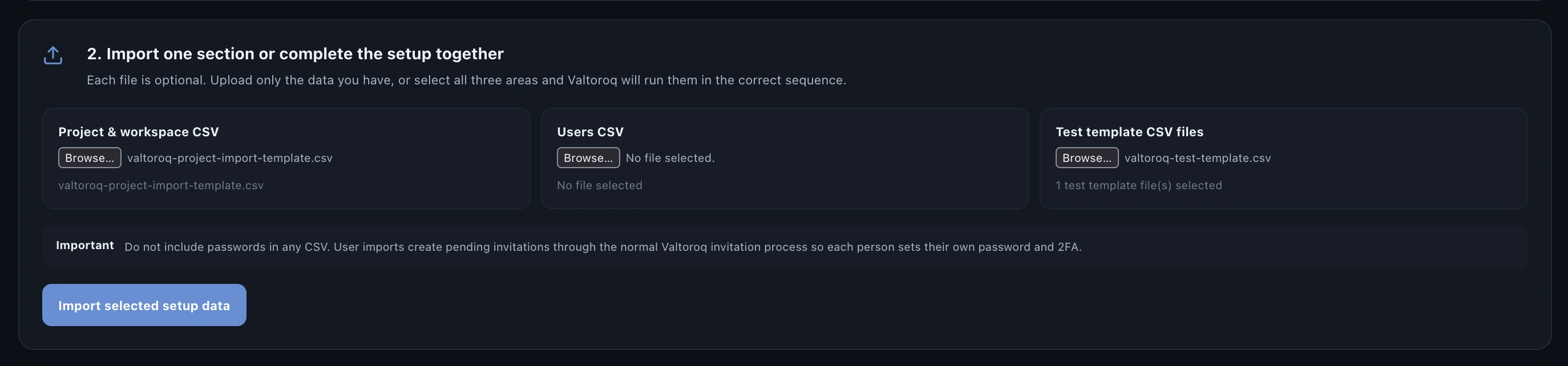
- Select the project and workspace CSV
Choose it when customer, project, site, system or equipment information is ready to load.
- Select the users CSV
Add it when the user roster and workspace roles are ready.
- Select one or more test-template CSV files
Add reusable engineering procedures without manually rebuilding every test step.
- Run the selected setup import
Valtoroq processes the selected import areas through their existing import workflows and reports the result so the administrator can review what happened.
Import reusable FAT, SAT and ATP procedures
Test procedures can be one of the most time-consuming parts of a new setup because a mature FAT or SAT may contain dozens or hundreds of individual checks. Valtoroq's test-template CSV import converts spreadsheet rows into reusable test items instead of requiring them to be recreated one item at a time.
- FAT — Factory Acceptance Testing
- SAT — Site Acceptance Testing
- ATP — Acceptance Test Procedure
- Commissioning
- Maintenance
- Custom procedures
Export all workspace data when you need a portable copy
Import should not be a one-way door. Workspace Owners and Administrators can use Export all workspace data to create a portable archive for backup, migration or customer offboarding.
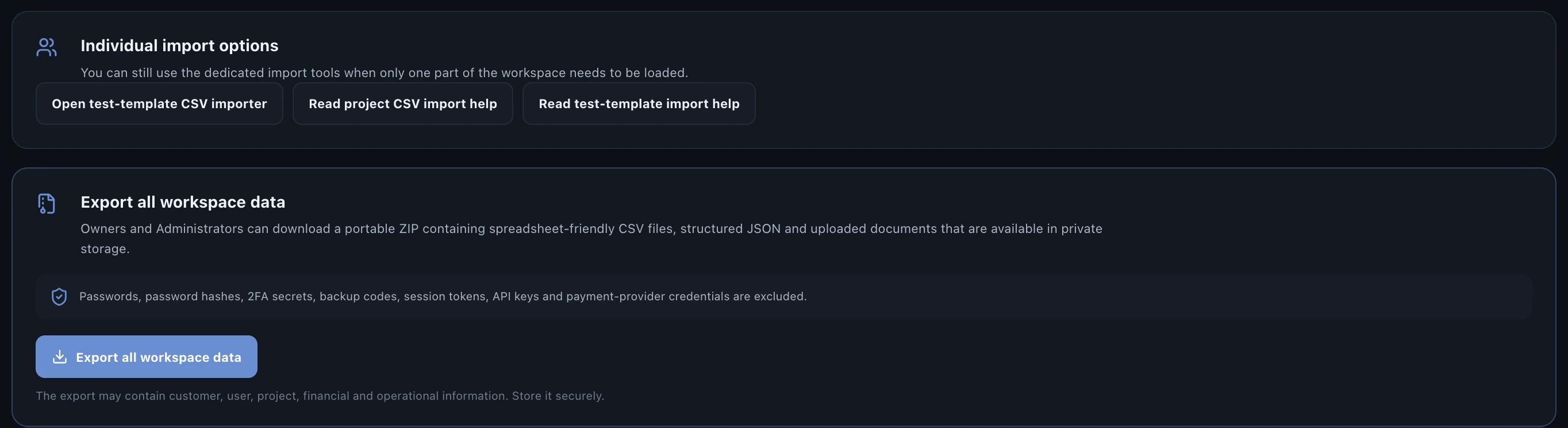
- Spreadsheet-friendly CSV exports for major workspace records.
- Structured JSON for a machine-readable representation of the workspace.
- A manifest describing the export and record counts.
- Uploaded document files that are available from private storage.
- Operational records such as projects, systems, testing, issues, acceptance, handover, planning, assignments, finance milestones and activity history.
What the export deliberately leaves out
A complete data export should contain the customer's operational information without turning the archive into a copy of authentication or infrastructure secrets.
- Passwords and password hashes
- Two-factor authentication secrets
- Backup codes
- Session tokens
- API credentials
- Email-provider credentials
- Billing-provider credentials
Common questions about importing and exporting Valtoroq data
- Can I import only one type of data?
Yes. Project/workspace data, users and test templates can be imported independently.
- Can I import user passwords?
No. User imports create pending invitations so each person completes normal account setup securely.
- Who can export all workspace data?
The complete workspace export is limited to workspace Owners and Administrators.
- Does the export contain passwords or 2FA secrets?
No. Authentication secrets, session tokens and provider credentials are excluded.
- What format is the export?
The portable ZIP includes CSV, structured JSON, a manifest and available uploaded documents.
Data portability should be part of the product
Teams are more comfortable adopting operational software when they know the information they create remains accessible. Valtoroq's import and export workflow is designed around that idea: bring existing spreadsheet data in when starting, work with it in a connected operational record and take a portable copy out when the business needs one.
For growing system integrators and technical delivery teams, this can reduce onboarding effort while making future backup, migration and offboarding more predictable.