
New in Valtoroq: see project schedules and workloads on a timeline
A deployment schedule becomes easier to discuss when the team can see the work, its owner and its place on the calendar. Valtoroq's project timeline brings those details together in a graphical view alongside task progress and hours. The view is useful for projects with several technical deliverables running in parallel: servers, virtualisation, storage and backup, firewalls, switches and monitoring. It helps a project manager review what is planned and where work overlaps, then focus on an individual employee or a shorter period when more detail is needed.
See the work across the calendar
Open a project, go to Plan & Schedule, and find Project timeline & resources. Choose a daily, weekly or monthly scale depending on the question you need to answer.
Use the monthly scale for a broader schedule review. Switch to a weekly or daily view to examine a FAT window, installation activity or SAT preparation in more detail. Use the employee filter to focus on a person's visible assignments.
Task bars show scheduled work across its start and finish dates. Milestone markers identify review points. The legend distinguishes planned, in-progress, blocked and complete work, while a red line marks the current date.
An example: a six-month infrastructure project
Our fictional Regional Infrastructure Upgrade demo runs from November 2026 through April 2027. It contains six deliverables, 60 tasks and eight milestones, including six FAT and six SAT schedule tasks.
Each deliverable follows a sequence of design, procurement, lab build, configuration, FAT, remediation, installation, SAT, operational readiness and handover. Activities overlap across deliverables so the project does not appear as one long, strictly sequential task list.
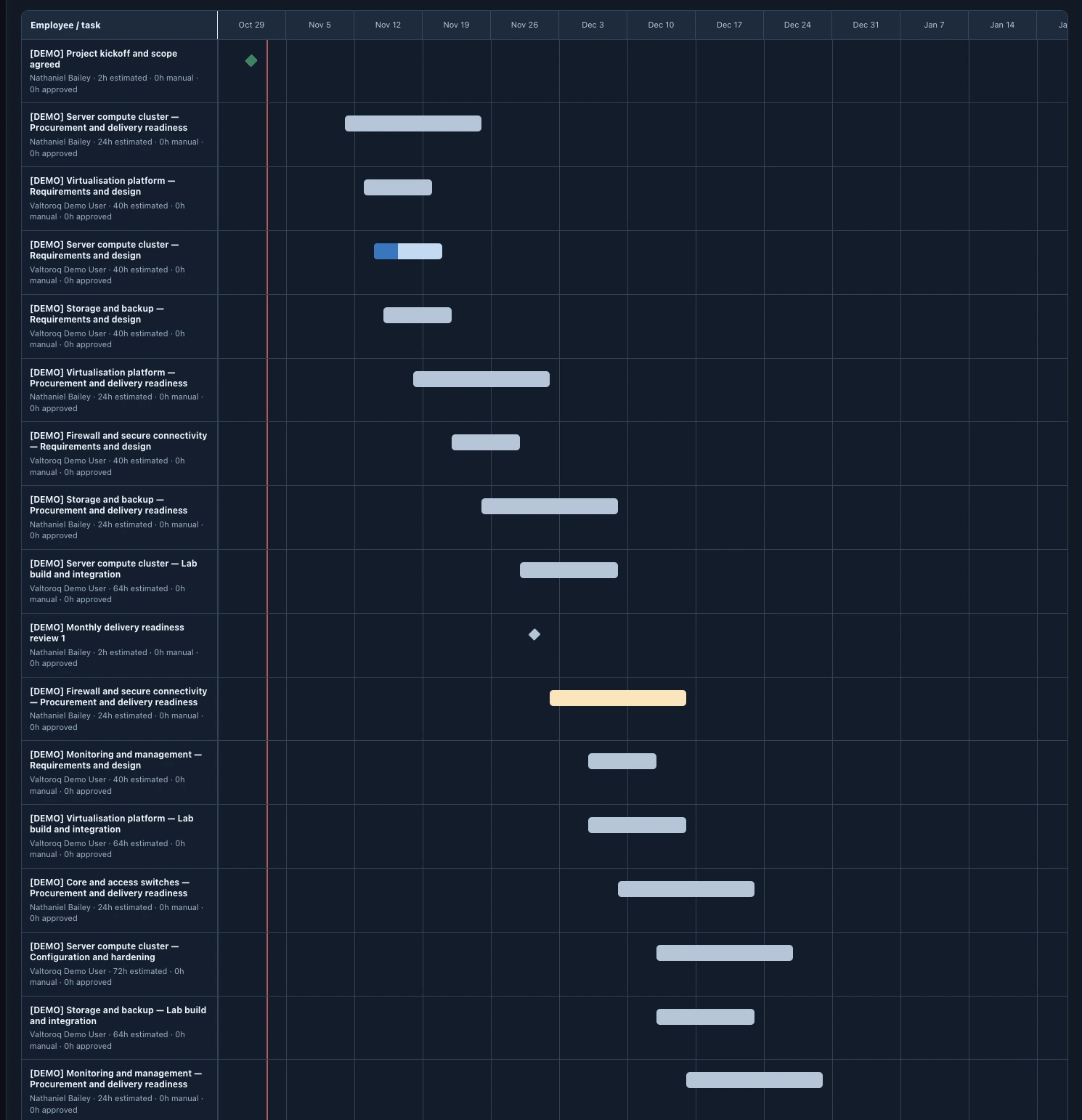
The screenshot includes design and procurement work for servers, virtualisation, storage, firewalls, switches and monitoring. It also shows an in-progress task, a completed kickoff marker and a blocked procurement item. Those differences give the team useful questions to investigate: which item needs attention, who owns it and which upcoming work may need review?
Keep FAT and SAT visible in the plan
Factory Acceptance Testing and Site Acceptance Testing have different purposes. Scheduling both makes their intended place in the delivery sequence visible, alongside preparation, remediation and installation work.
A scheduled FAT or SAT task is not evidence that a test has been executed or passed. Keep the plan connected to the actual testing and issue workflow, and review results before treating the deliverable as ready for acceptance.
The demo contains schedule tasks rather than fabricated test results, customer sign-offs or approved timesheets.
Preview a date change before saving it
The What-if schedule preview lets you select a task, choose a target completion date, drag its bar or use the day-shift shortcuts. The task duration stays unchanged while the preview moves its dates.
Preview changes remain local until an authorized project manager chooses Save selected schedule. You can reset the selected task or clear the preview instead of saving it.
The server checks linked predecessor and successor dates when a change is saved. Dependent tasks do not shift automatically. If moving a FAT activity affects installation or SAT, review those related tasks rather than assuming the schedule has been recalculated for you.
Review workload without confusing estimates with timesheets
The Employee workload & capacity section summarizes visible assignments against a weekly planning threshold. It can highlight overlapping estimated work that deserves a conversation about dates, ownership or scope.
This calculation distributes estimated hours evenly across scheduled calendar days. It is indicative planning information, not a business-day availability forecast or an employee timesheet.
Keep the three hour measures distinct:
- Estimated hours describe planned effort.
- Manual actual hours are maintained separately in the manager task forms.
- Approved hours come from approved employee submissions and are not added to manual actuals.
Changing the displayed weekly capacity or employee filter is temporary browser configuration. Those controls do not modify the project schedule.
Use the view in a regular project review
Start with the broader schedule, inspect blocked work, review upcoming FAT and SAT windows, and check whether overlapping assignments need attention. Then discuss a possible date change in the preview before deciding whether to save it.
The timeline supports that conversation. Test evidence, issue resolution and authorized acceptance decisions remain the basis for demonstrating that the delivered work is complete.
Project Planning is available on eligible plans and depends on workspace permissions. If the controls are unavailable, ask your workspace administrator to check your access and plan.